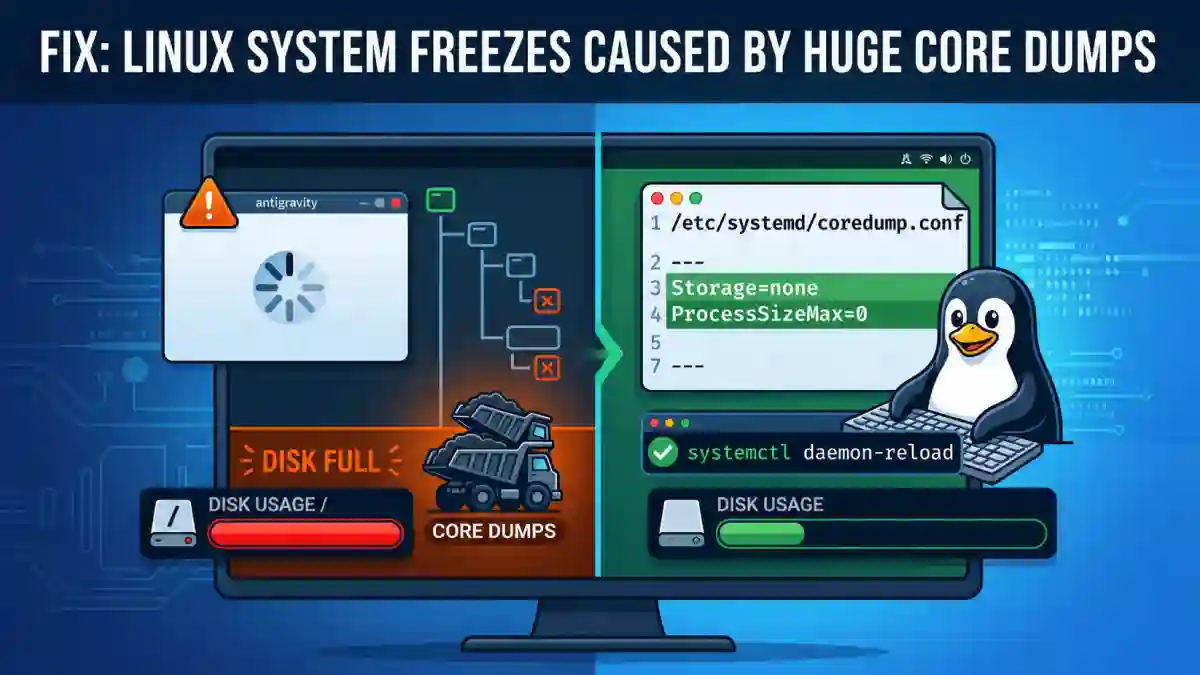
If you’ve ever closed a memory-intensive application—like a heavy IDE or a resource-hungry simulation—on Linux only to have your entire system lock up for minutes, you aren’t alone.
Many users run into an infuriating issue where closing a crashed or heavy application triggers a cascade of system instability. Everything freezes, your cursor stops responding, and you might even start seeing terrifying “disk full” warnings on your root partition.
The culprit is often systemd-coredump.
Here is why this happens, how you can fix it in under a minute, and how to safely revert it if you ever need to send a crash log to a developer.
The Root Cause: I/O Bottlenecks from Huge Core Dumps
When an application crashes or closes unexpectedly, Linux often tries to create a “core dump”—a file containing the recorded state of the program’s working memory at a specific time. This is incredibly useful for developers trying to debug a crash.
However, if the application was using a massive amount of RAM (think 16GB or more), systemd-coredump attempts to write all of that data straight to your disk.
This creates an extreme I/O bottleneck. Your disk usage spikes to 100%, your root partition temporarily fills up, and your system freezes completely until the massive file finishes writing. On systems with slower SSDs or HDDs, this can render the machine unusable for several minutes.
The Solution: Disable Storage, Keep the Logs
You can prevent this freeze by telling systemd to stop writing these massive dump files to your disk. The best part about this fix is that it still retains the actual crash logs in your system journal, so you aren’t flying blind if you still need to troubleshoot the crashed application.
Here is how to apply the fix:
Step 1: Edit the Coredump Configuration
Open your terminal and edit the systemd coredump configuration file using your text editor of choice (like nano or vim). You will need root privileges:
sudo nano /etc/systemd/coredump.confStep 2: Update the Storage Settings
Look for the [Coredump] section. You need to change (or add) two specific lines. Update the file so it includes the following:
[Coredump]
Storage=none
ProcessSizeMax=0Storage=none: This completely disables saving the core dump file to disk.ProcessSizeMax=0: This acts as a failsafe, setting the maximum size of a core dump file to zero.
Step 3: Reload the Systemd Daemon
Save the file and exit your editor. To apply the changes immediately, reload the systemd daemon:
sudo systemctl daemon-reloadNeed to Share a Core Dump? How to Revert
Sometimes, an application developer might specifically ask you for a core dump file to help them fix a bug. Reverting your system to temporarily allow core dumps is just as easy as disabling them.
- Open the configuration file again:
sudo nano /etc/systemd/coredump.conf - “Comment out” the lines you added by placing a hash (
#) at the start of each line:
[Coredump]
#Storage=none
#ProcessSizeMax=0- Save the file and reload the daemon:
sudo systemctl daemon-reload
Once you have reproduced the crash and extracted the core dump (usually using a tool like coredumpctl), simply remove the # symbols and reload the daemon to protect your system from freezes once again!
Conclusion
That’s it! The next time your heavy applications crash, systemd-coredump will note the event in your journal logs but will completely bypass writing the massive dump file to your storage. No more “disk full” warnings, and most importantly, no more agonizing system freezes.